WordPress Robots.txt: The Right Setup (With Examples)
A step-by-step guide to setting up WordPress robots.txt: where it lives, how to edit it, the exact rules to copy, what never to block, and how to fix it when it breaks.

Try the free robots txt generator
Free, no sign-up. Then let Rankfly research, write and publish the articles that rank.
Use the free toolKey takeaways
- WordPress serves a virtual robots.txt at yourdomain.com/robots.txt, and you can replace it by editing through Yoast SEO, AIOSEO or by uploading a physical file to your site root.
- A good WordPress setup blocks /wp-admin/ (except admin-ajax.php) and low-value URLs like internal search, and lists your XML sitemap.
- Do not block /wp-includes/, plugins or /wp-content/uploads/, because Google needs CSS, JavaScript and images to render your pages.
- Robots.txt controls crawling, not indexing: use a noindex tag to keep a page out of search results, and do not block that page in robots.txt.
- Always test after editing, and re-check the file when you launch a site that started on staging.
Table of contents
Your WordPress robots.txt is a plain text file at yourdomain.com/robots.txt that tells search crawlers which URLs they may crawl. WordPress creates a basic virtual one for you. The right setup adds a few lines: block the admin area and internal search URLs, leave CSS, JavaScript and uploads open, and point crawlers to your sitemap.
This guide walks through it in order: check what you have, choose an editing method, paste the rules, test, and fix problems. Everything works on a standard WordPress install at the root of a domain or subdomain.
What is a WordPress robots.txt file?
A robots.txt file is a plain text file in the root folder of a website that tells search engine bots which parts of the site they can crawl and which to skip. Search engines open it before they visit pages on a domain, so it is the first thing they read.
It is not the same as a robots meta tag. The meta tag sits in the head of one page and applies only to that page, while robots.txt applies to URL paths across the whole site. Compliance is voluntary, but all major search engines follow it, as Yoast explains in its robots.txt guide.
Step 1: Check your current WordPress robots.txt
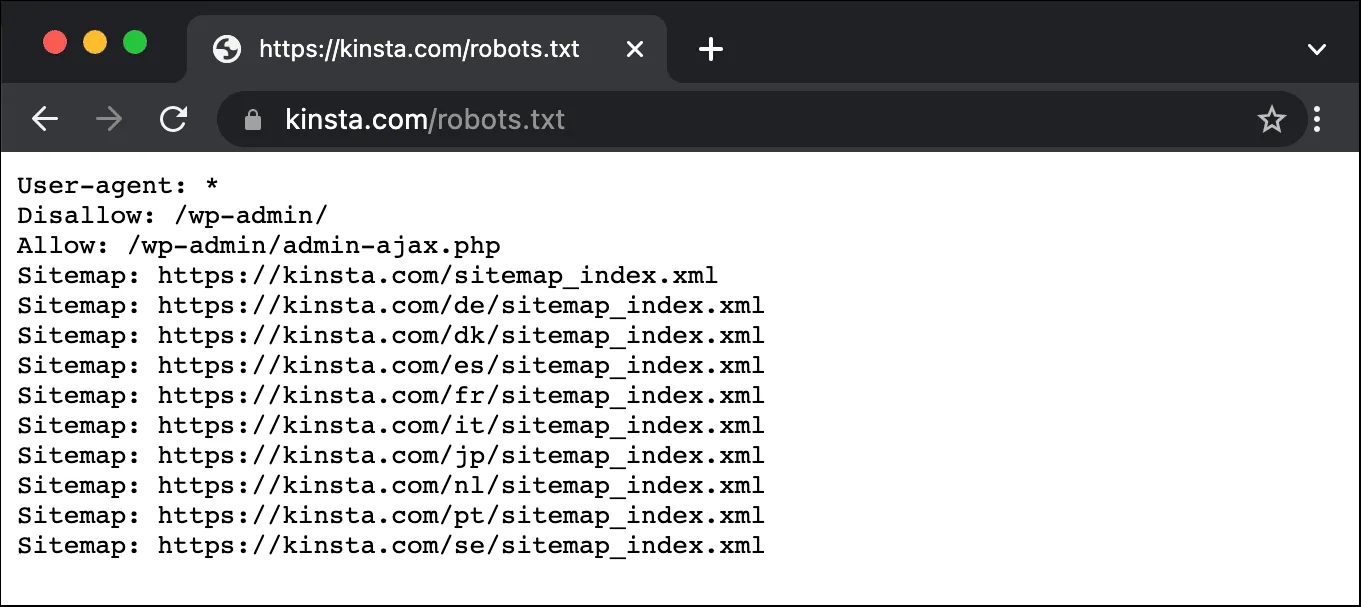
Open https://yourdomain.com/robots.txt in a browser. By default, WordPress generates a virtual file that exists only in memory, so you will not find it on your server over FTP. Depending on your version and plugins, it will look something like this:
User-agent: *
Disallow: /wp-admin/
Allow: /wp-admin/admin-ajax.php
The first line says the rules apply to all bots. The second blocks the admin folder. The third makes an exception for admin-ajax.php, which some themes and plugins use on the front end.
This default is safe, but it is basic. For a small brochure site it may be all you need. If you run a blog, a store or any site with search and filter URLs, you will want more control.
Step 2: Choose how to edit your robots.txt
To customize the file, you either use a plugin with a built-in editor or upload a real file to your site root. A physical file takes priority over the virtual one.
| Method | Where to find it | Best for |
|---|---|---|
| Yoast SEO | SEO > Tools > File editor | Sites already running Yoast |
| All in One SEO (AIOSEO) | Tools > Robots.txt Editor, then switch on Enable Custom Robots.txt | Sites running AIOSEO, no code needed |
| FTP or hosting file manager | Create robots.txt in the site root folder (next to wp-config.php) |
Anyone comfortable uploading files |
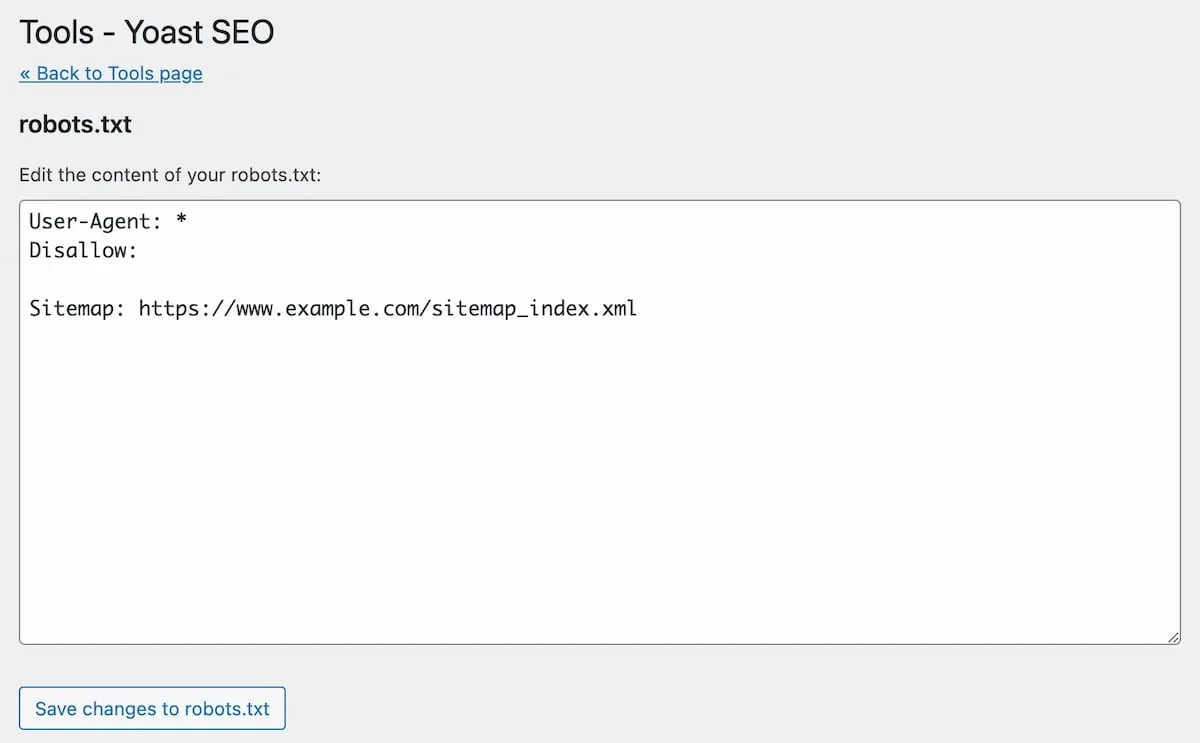
Edit it with Yoast SEO
Yoast SEO includes a file editor in the WordPress admin, so you never touch the server. Yoast's help page covers the exact clicks. This video shows the same process.
Edit it with AIOSEO
In AIOSEO, go to Tools > Robots.txt Editor and click the Enable Custom Robots.txt toggle. You can then add rules with Allow, Disallow, Clean-param and Crawl-delay directives, pick the user agent, and set the path. AIOSEO also adds your sitemap URLs automatically, and its robots.txt editing tutorial shows each screen.
Upload a physical file
Create a text file named exactly robots.txt (lowercase), paste your rules, and upload it to the root folder of your WordPress install. The name is case-sensitive, and it must sit at the root, so crawlers find it at https://yourdomain.com/robots.txt.
Step 3: Add the recommended rules
Here is a clean starting point for most WordPress sites. Replace the sitemap URL with your own.
User-agent: *
Disallow: /wp-admin/
Allow: /wp-admin/admin-ajax.php
Disallow: /?s=
Disallow: /search/
Disallow: /*?replytocom=

Sitemap: https://example.com/sitemap_index.xml
What each part does:
- User-agent: * applies the rules to every crawler.
- Disallow: /wp-admin/ keeps bots out of the admin area.
- Allow: /wp-admin/admin-ajax.php keeps the one file some front-end features need.
- Disallow: /?s= and /search/ stop bots crawling internal search results.
- Disallow: /*?replytocom= stops crawling of comment reply URLs.
- Sitemap: tells crawlers where your sitemap lives.
You can generate this file without typing it by hand. Pick your options in the generator and paste the output into your editor.
Block internal search results
Sites produce a lot of extra URLs when visitors use the search box. Search engines treat each parameter combination as a separate page, so they can waste crawl time on them. The two Disallow lines for /?s= and /search/ cover the default WordPress search URLs. If your theme or plugin uses a different search path, add a matching line.
Block low-value query parameters
If your site uses filters and sorting (a store with colors and sizes, for example), the number of possible URLs grows fast. Yoast calls this a spider trap and recommends keeping crawlers on your main URLs. Add a wildcard rule for each parameter you know has no value:
Disallow: /*?orderby=
Disallow: /*?add-to-cart=
Disallow: /*?utm_
Check each parameter before you block it. If a filtered page ranks or earns links, leave it open.
Decide on tag archives
Tag archives often add little. If yours are thin and you never want them in search, add Disallow: /tag/. If you use tag pages as real landing pages, skip this rule. As Search Engine Journal notes in its WordPress robots.txt guide, weigh this against your content plan and avoid linking internally to areas you do not want crawled.
Step 4: List your XML sitemap
Add a Sitemap: line for every sitemap you have. Use the full URL, and you can list more than one.
Sitemap: https://example.com/sitemap_index.xml
Sitemap: https://example.com/news-sitemap.xml
The sitemap line helps crawlers find all the URLs you want indexed. Check that the sitemap loads and has no errors with the XML sitemap validator.
Step 5: Do not block what Google needs to render your pages
Older guides tell you to disallow /wp-includes/, /wp-content/plugins/ or /wp-content/uploads/. Do not. Blocking CSS and JavaScript can hurt how Google renders your pages, and blocking uploads hides the images and media you want crawled.
A quick reference for what to block and what to leave alone:
| Path | Block it? | Why |
|---|---|---|
| /wp-admin/ | Yes (keep admin-ajax.php allowed) | No search value |
| /?s= and /search/ | Yes | Internal search results are thin and endless |
| /wp-includes/ | No | Holds scripts Google may need to render pages |
| /wp-content/plugins/ | No | Plugin CSS and JavaScript affect rendering |
| /wp-content/uploads/ | No | Your images, PDFs and media live here |
| /tag/ | Only if thin | Depends on whether you use tag pages |
Step 6: Block your staging site
A staging site should not be crawled. The safest setup is to disallow everything in robots.txt and also keep a noindex tag on the pages:
User-agent: *
Disallow: /
In WordPress, go to Settings > Reading and tick Discourage search engines from indexing this site. Then open /robots.txt to confirm what the site now outputs.
The risk is on launch day. If you copy a staging site to production, the block comes with it. Untick that Reading option and remove any Disallow: / line, then re-check your live robots.txt the same day.
Step 7: Decide what to do about AI crawlers
You can block specific AI crawlers with their own user-agent block. For example, to block OpenAI's GPTBot:
User-agent: GPTBot
Disallow: /
Think before you do this. If you want to be recommended in ChatGPT and other assistants, blocking their crawlers works against you. AIOSEO has a Block AI Crawlers section if you decide it is right for your site. If getting cited is the goal, read how AI search citations work first.
Step 8: Test your robots.txt
After saving, run three checks:
- Load the file. Visit
/robots.txtand confirm your new rules appear. Hard refresh if you see the old version. - Run it through a checker. Paste your URL into the robots.txt checker to catch syntax errors and see whether key URLs are allowed.
- Use Google Search Console. Check the robots.txt report for fetch errors, and use the URL Inspection tool to see whether a specific URL is blocked. Under Settings, Crawl Stats shows whether bots are still wasting requests on junk URLs.
Google documents the rules it follows in its robots.txt guide for Search Console. Updates are usually picked up within a day, though some hosts mention up to 36 hours.
Robots.txt syntax cheat sheet
| Directive | What it does | Example |
|---|---|---|
| User-agent | Picks which bot the rules apply to | User-agent: Googlebot |
| Disallow | Blocks a path from crawling | Disallow: /wp-admin/ |
| Allow | Makes an exception inside a blocked path | Allow: /wp-admin/admin-ajax.php |
| Sitemap | Points to your XML sitemap | Sitemap: https://example.com/sitemap_index.xml |
| Wildcard (*) | Matches any characters | Disallow: /*?replytocom= |
| End of URL ($) | Matches the end of a URL | Disallow: /*.pdf$ |
| Crawl-delay | Asks a bot to wait between requests | Crawl-delay: 10 |
Two details trip people up. Directive values are case-sensitive, so /Photo/ and /photo/ are different. And a bot follows only the most specific block that matches its name: if you add a Googlebot block, Googlebot ignores your * block, so repeat any rules you still want for it.
Crawl-delay is unofficial. Google ignores it, so do not rely on it to slow Googlebot down. Bing has been reported to honor it, but check current Bing guidance.
Troubleshooting common WordPress robots.txt problems
My whole site is blocked
Look for Disallow: / in your robots.txt. The usual cause is the Discourage search engines setting left on after launch, or a staging file copied to production. Untick the option in Settings > Reading, remove the line, and re-test.
My edits are not showing up
First, check for a physical robots.txt in your site root. If one exists, it overrides the virtual file and your plugin edits will not appear. Then clear your caching plugin, server cache and CDN cache, and reload the file. Also make sure two plugins are not both trying to manage the file.
A blocked page is still in Google
Robots.txt stops crawling, not indexing. If other pages link to a blocked URL, Google can still list it with no description. To keep a page out of results, use a noindex tag and leave the page crawlable so Google can see the tag. You can confirm the tag works with the noindex checker. Also remember that a blocked page cannot pass link value to the pages it links to.
My pages look broken in Google's rendering
You are probably blocking CSS, JavaScript or uploads. Remove any Disallow lines for /wp-includes/, /wp-content/plugins/, /wp-content/themes/ or /wp-content/uploads/.
My rules do not seem to work
Check the basics. The file must be named robots.txt in lowercase, sit at the root, and have no spaces before a directive at the start of a line. Remember that paths are case-sensitive, and that a specific user-agent block replaces the * block for that bot.
Where Rankfly fits
Robots.txt only decides what crawlers can reach. You still need pages worth crawling. Rankfly researches the top results for your keywords, writes one SEO article a day in your brand's voice, and publishes it straight to WordPress, with a review mode if you want to approve each one. It costs $66 per month for 30 articles, with a 3-day free trial, and it is built for small teams that want the content done for them rather than a full SEO suite like Semrush or Ahrefs.
If you want a broader check of your technical basics after this, the free SEO checklist covers the other items worth fixing.
Final thoughts
A good WordPress robots.txt is short: block the admin area and low-value URLs, leave rendering files open, and list your sitemap. Test it after every change and again when a staging site goes live. Start with the generator, paste the result into Yoast, AIOSEO or your site root, and check it in Search Console.
Frequently asked questions
Where is the robots.txt file in WordPress?
WordPress serves a virtual robots.txt at yourdomain.com/robots.txt, so you will not see it in your server files by default. If you upload a physical robots.txt to the site root, or edit through a plugin like Yoast SEO or AIOSEO, that version is served instead.
How do I edit robots.txt in WordPress without code?
Use an SEO plugin. In Yoast SEO go to SEO > Tools > File editor, and in AIOSEO go to Tools > Robots.txt Editor and enable the custom file. Save your rules, then load /robots.txt to confirm they appear.
What is the best robots.txt for WordPress?
For most sites, block /wp-admin/ while allowing /wp-admin/admin-ajax.php, block internal search URLs, and add your sitemap URL. Do not block /wp-includes/, plugins or uploads, because Google needs those files to render your pages.
Does robots.txt stop a page from appearing in Google?
No. It stops crawling, but Google can still index a blocked URL if other pages link to it. Use a noindex meta tag to keep a page out of search results, and let Google crawl the page so it can see the tag.
How long do robots.txt changes take to work?
Search engines cache robots.txt and usually refresh it several times a day, so changes are often picked up quickly. Some guides say to allow up to 36 hours, so wait a day before assuming a change failed.
Do I need a robots.txt file for my WordPress site?
You do not need to create one, because WordPress serves a default. A custom file is worth it if you want to block internal search or parameter URLs, add your sitemap, or control specific bots.
About the editorial team
Emma writes Rankfly's guides on SEO, AI search and getting small businesses found on Google and ChatGPT.