How to Write and Edit Meta Descriptions in Yoast
A step-by-step guide to adding and editing a Yoast meta description, writing ones that earn clicks, setting templates, and fixing it when it does not show up.

Try the free meta description generator
Free, no sign-up. Then let Rankfly research, write and publish the articles that rank.
Use the free toolKey takeaways
- You add a Yoast meta description in the Yoast SEO box under the editor, in the field labeled Meta description, then click Update.
- A good description is a short, specific summary with the keyword and a reason to click, written for the searcher and not for a plugin score.
- Templates in Yoast's Search appearance settings use variables like %%excerpt%% and %%sitename%% to cover pages you have not written descriptions for.
- If a description does not show in your page source, the usual causes are a theme, a plugin conflict (Elementor is a known one), or caching.
- Google can still replace your description with its own text, so write one that matches the page and the query.
Table of contents
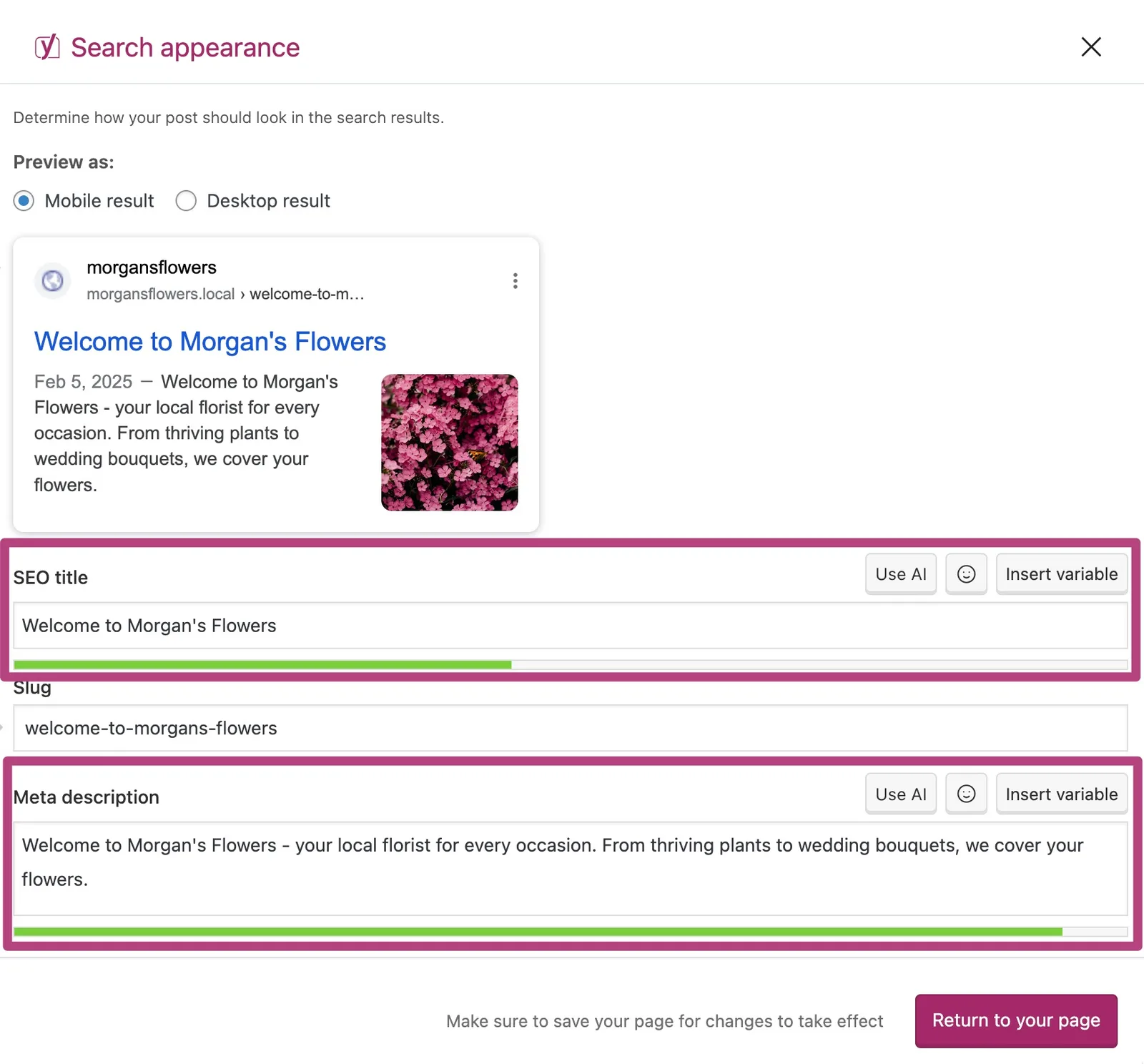
To add a meta description in Yoast, open the page or post, scroll to the Yoast SEO box below the editor, type your text into the Meta description field, and click Update or Publish. Yoast then outputs it in your page's HTML for search engines to use as the snippet.
This guide walks through each step, shows how to write descriptions that get clicks, explains how to set a template for the pages you have not written by hand, and covers what to do when the description does not show up.
What is a meta description in Yoast?
A meta description is an HTML tag that summarizes a page, and search engines often show it as the text under your title in results. Yoast SEO gives you a field for it on every post, page and content type, so you never edit code.
Here is what the tag looks like in your page source after Yoast adds it:
<meta name="description" content="Learn how to write a meta description in Yoast, with examples and fixes." />
The description does not directly raise your rankings. Its job is to win the click once you appear, which is why it still matters. For the title half of the snippet, see our guide to title tag SEO.
How to add a meta description in Yoast, step by step
The screen layout shifts a little between Yoast versions, but the flow is the same in the block editor, the classic editor and most page builders.
Step 1: Open the page or post
In your WordPress dashboard, go to Posts or Pages, then open the one you want to edit. You can also add a description to a new draft before you publish.
Step 2: Find the Yoast SEO box
Scroll below the editing area until you see the Yoast SEO box. In the block editor you can also click the Yoast icon in the top right to open it in the sidebar.
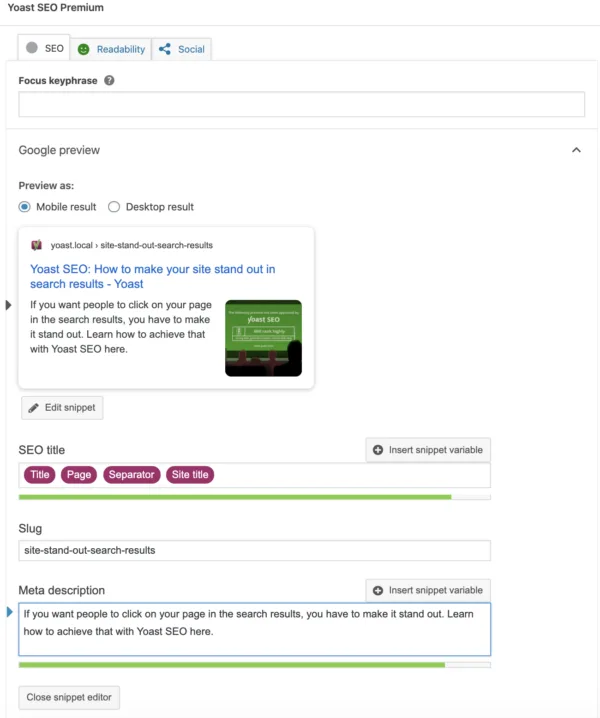
You will see a search preview, a focus keyphrase field, and the SEO title and meta description fields. Some versions hide the title and description behind a button labeled Edit snippet or a section called Search appearance. Click it to expand the fields.
Step 3: Type your meta description
Click into the Meta description field and write your text. If you leave it empty, Yoast falls back to your template or to the excerpt, which is rarely as good as a hand-written line.
A copy-paste starting point:
[What the page gives] for [who it's for]. [One specific detail or proof point]. [Soft call to action].
Filled in for a plumber:
Water heater repair in Austin, same day in most cases. Licensed, insured, upfront pricing. Call for a free quote.
Step 4: Check the preview and the length bar
Yoast shows a colored bar under the field. Green means your text fits the length Yoast considers safe, and orange or red means it is too short or too long. Treat the bar as a guide, because Google truncates by pixel width and not by a fixed character count.
A practical target is roughly 120 to 160 characters, with the key message in the first 100 or so. You can paste a draft into our meta description length checker to count it, or into the SERP preview tool to see how it will look.
Step 5: Save and confirm it is live
Click Update or Publish. Then open the page, right-click, choose View page source, and search for name="description". If your text appears there, Yoast is doing its job.
If you prefer to watch it done, this walkthrough covers the same steps on screen.
How to write a meta description that gets clicks
The best descriptions read like a short, honest pitch for one specific page. Write for the person searching, not for the green bar.
- Lead with the answer or the benefit. Say what the reader gets in the first sentence.
- Include the main keyword naturally. Search engines bold matching words, which helps your result stand out.
- Add one concrete detail. A number, a location, a price range, a guarantee.
- End with a nudge. "See examples", "Get a free quote", "Copy the template".
- Make every description unique. Duplicates across pages give searchers no reason to choose one over another.
- Match the page. If the page does not deliver what the description promises, people leave and Google may rewrite it.
Before and after
| Version | Example | Problem or strength |
|---|---|---|
| Before | Welcome to our blog where we talk about lots of things including SEO and more. | Vague, no keyword, no reason to click |
| Before | yoast meta description, how to add yoast meta description, yoast seo | Keyword stuffing, reads like spam |
| After | Add and edit a Yoast meta description in 5 steps, with copy-paste examples and fixes for when it does not show. | Specific, keyword up front, clear benefit |
Writing these for dozens of pages gets slow. Our free meta description generator drafts options from your page topic, and you can edit them before pasting into Yoast.
How to set a Yoast meta description template
A template gives every page of a type a default description built from variables, so nothing is ever blank. It is a safety net, not a replacement for hand-written text on your important pages.
In current versions, go to Yoast SEO > Settings > Search appearance, then open Content types and pick Posts, Pages or a custom type. You will find a Meta description field where you can type text and variables. Older versions put this under Search Appearance > Content Types.
Common variables:
| Variable | What it outputs |
|---|---|
| %%excerpt%% | The post excerpt (or the start of the content if none is set) |
| %%title%% | The post or page title |
| %%sitename%% | Your site name |
| %%sep%% | The separator you chose, such as a dash or pipe |
| %%primary_category%% | The post's main category |
A simple template for a blog:
%%excerpt%% Read more on %%sitename%%.
A better template for a local service site's service pages is to write the description by hand and keep the template as the fallback only. Templates work best when your excerpts are written as short summaries. If you never fill the excerpt, the output can look like a cut-off first paragraph.
Homepage, archives and taxonomies
The homepage description lives in the same Search appearance area, under General. Category and tag pages have their own templates, and you can edit a single category's description on its edit screen. Set a clear homepage description first, since it is often the page people see most in branded searches.
How to edit an existing Yoast meta description
Editing works the same way as adding. Open the post or page, expand the Yoast SEO box, change the text in the Meta description field, and click Update.
Three good reasons to rewrite one:
- The page ranks but gets few clicks. A sharper description may help.
- The page content changed and the description is now out of date.
- Google is showing a different snippet because yours does not match what people search for.
Changes are not instant in results. Google has to recrawl the page, and it may still choose its own snippet.
Yoast meta description not showing: troubleshooting
There are two different problems here, and the fix depends on which one you have. Either the description is missing from your page source, or it is in the source but Google shows something else.
| Symptom | Likely cause | Fix |
|---|---|---|
| No description tag in page source | Theme overriding the head, or a plugin conflict | Test with a default theme and with other plugins off |
| Description missing only on pages built with a page builder | Builder's own settings or output | Check the builder's page settings, then test with it off |
| Old description still appears in source | Caching | Clear plugin, server and CDN caches |
| Tag is in source, Google shows other text | Google chose its own snippet | Rewrite the description to match the page and the query |
| Two description tags in source | Another SEO plugin or theme code adds one | Remove the duplicate source |
Check for theme and plugin conflicts
Yoast's own support advice for a missing description is to suspect the theme first. In one WordPress.org support thread, a Yoast support volunteer recommended temporarily switching to a default theme and using the Health Check & Troubleshooting plugin, which has a troubleshooting mode that does not affect normal visitors. Yoast also publishes a guide on how to check for plugin conflicts.
In that same support thread, the person who started it found that deactivating Elementor brought the description back. They then fixed it by editing the Excerpt field in Elementor's Page Settings, which is where Elementor holds its own description. Other users in the thread said that fix did not work for them, so treat it as one thing to try and not a guaranteed cure.
Yoast also has a help page for the case where no description shows in your head section.
Check that the page is allowed to appear
If the page itself is hidden from search, the description is moot. Run the URL through our noindex checker and make sure your WordPress robots.txt is not blocking it.
Why Google ignores your description
Google does not promise to use the description you write. A thread in Google's Search Central community from January 2022 puts it bluntly, with a reply saying Google can show a title and snippet of its own making instead of what Yoast outputs. That is normal behavior, not a Yoast bug.
You cannot force it, but you can improve the odds. Make the description an accurate summary of the page, cover the words people actually search, and keep it unique to that page.
How to change the description with code (for developers)
If you need to change what Yoast outputs, for example to translate it on a bilingual site, do not add a second tag with add_action. A question on WordPress Development Stack Exchange shows that approach just produces a duplicate description tag. Use Yoast's filter instead, documented in the Yoast SEO API.
add_filter( 'wpseo_metadesc', function ( $description ) {
    if ( is_front_page() ) {
        return 'Your custom homepage description here.';
    }
    return $description;
} );
Add this to a child theme's functions.php or a small custom plugin, never to a parent theme that updates will overwrite. Test on a staging site first.
Where Rankfly fits
A good description helps a page get clicked, but the page still has to exist and be worth ranking. If writing and publishing the content is your bottleneck, Rankfly researches the current top results, writes one SEO article a day in your brand's voice, and publishes it to WordPress automatically, with a review mode if you want to approve each one first. It costs $66/month for 30 articles, with a 3-day free trial. It is built for small teams, not as a full SEO suite like Semrush or Ahrefs.
Yoast meta description checklist
- Open the page and expand the Yoast SEO box.
- Write a unique description with the main keyword and one concrete detail.
- Aim for about 120 to 160 characters and check it in the preview.
- Save, then confirm the tag in the page source.
- Set a template as a fallback for pages you do not write by hand.
- If it does not show, test the theme, plugins, page builder and cache.
For a wider pass over your on-page basics, our free SEO checklist covers the rest.
Final thoughts
A Yoast meta description takes under a minute to add: open the page, fill in the Meta description field, and save. Write it as a short, honest pitch for that one page, set a template as a backup, and troubleshoot your theme and plugins if it does not appear. Your next step is to draft your top five pages' descriptions with the meta description generator.
Frequently asked questions
Where do I add a meta description in Yoast?
Open the post or page, scroll to the Yoast SEO box below the editor, and type into the Meta description field. In some versions you first click Edit snippet or open the Search appearance section. Then click Update or Publish.
How long should a Yoast meta description be?
Aim for roughly 120 to 160 characters and put the main message early. Yoast's colored bar is a useful guide, but Google truncates by pixel width, so the exact cutoff varies by device and characters used.
Why is my Yoast meta description not showing in Google?
Google does not always use the description you write and may show text of its own choosing. First confirm the tag appears in your page source. If it does, rewrite the description to match the page and the search query more closely.
Why is my Yoast meta description missing from the page source?
The usual causes are a theme that overrides the head section, a plugin or page builder conflict, or caching. Test with a default theme and other plugins deactivated, and clear all caches. If you use Elementor, check its Page Settings as well.
Can I set a default meta description for all posts in Yoast?
Yes. Go to Yoast SEO, Settings, Search appearance, then Content types, and enter a template using variables such as %%excerpt%% or %%sitename%%. It applies to any post without its own description, so write key pages by hand.
Do meta descriptions affect SEO rankings?
They are not a direct ranking signal, but they affect whether people click your result. A clear, specific description can improve click-through, and clicks matter to the traffic you actually receive.
About the editorial team
Emma writes Rankfly's guides on SEO, AI search and getting small businesses found on Google and ChatGPT.